"I wanted my agent to get some work done while I ran an errand, but it got blocked on some stupid environment issue and stopped working."
Use SLAM. It self-corrects.
"After a couple weeks working on this project, my agents waste all their time on useless tests, documentation, comments and bad architecture. Development is slowing to a crawl and my subscription quota is wasted."
Use SLAM. And tell your XO to cut the crap.
"I'm sick of having these long planning conversations with AIs, ending up with disorganized implementation plans and wearing me out."
Use SLAM to create a slate of nicely organized tickets, then run SLAM Auto Mode to execute them quickly.
Tickets record the work to do. Planning captures decisions before an agent implements a ticket or phase. SLAM handles the ticket status and commit bookkeeping.
Take charge of your agents
Review the plan and resulting changes. Implement runs one phase or one unphased ticket and ends at done for review. Auto Mode launches a fresh agent for each phase, commits completed work, and selects the next ticket.
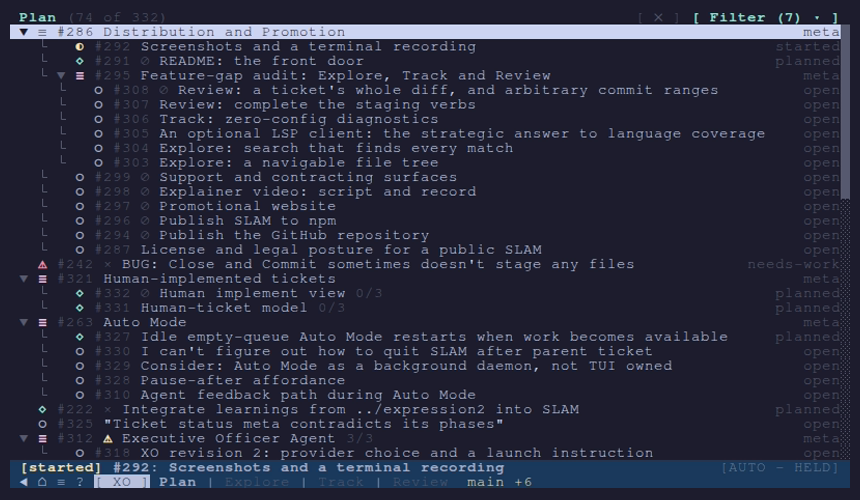
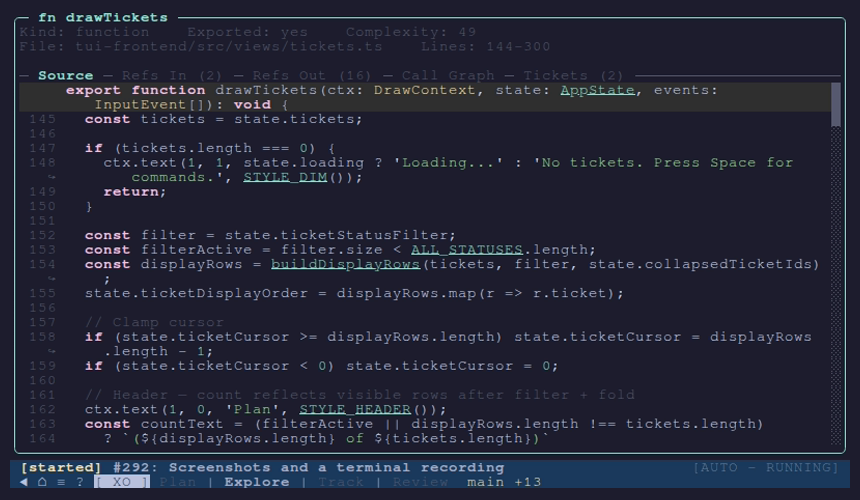
The Plan Tab organizes tickets and launches work. Explore browses files and symbols, Track reads diagnostics, and Review walks diff hunks. Research-Plan-Implement is an existing workflow that inspired SLAM.
Example ticket: preserve a player's sound setting. Every artifact below is fictional. Advance or revisit the steps to see how a ticket keeps findings, human decisions and verification together beyond a conversation.
Example ticket / status: open
Request: Remember my sound setting after restart.
Finding: Settings.load() always uses sound = true.
Existing storage: settings.json
The finding stays beside the request so the next session can start from evidence rather than reconstructing the conversation.
2 Plan / SLAM Questions
Question: What should happen on a first launch?
Human decision: Sound on. Preserve an explicit off.

Plan:
- Save sound in the existing settings file.
- Default to true only when the value is missing.
- Check missing, true and false values.
- Leave volume controls outside this ticket.
Status after planning: planned
The human settles the default and scope before implementation. The decision and acceptance checks remain in the ticket.
One unphased example ticket:
planned -> started -> done

Illustrative change:
- sound: true
+ sound: saved.sound ?? true

Illustrative verification record:
missing -> on; true -> on; false -> off
An Implement call ends at done. In Auto Mode, the supervisor launches a fresh agent for each phase, commits completed work and picks the next ticket. This example only displays artifacts; it executes no code or tests.
Demonstration of hunk inspection in the Review Tab. These fictional changes implement the recorded human decision and acceptance checks: sound on when missing, preserve explicit off, and leave volume controls outside scope.
Hunk 1 of 2 / settings.ts / load()
@@ -1,2 +1,2 @@ load(): Settings11Old line 1, new line 1, context: const saved = readSettings("settings.json");2-Old line 2, removed: return { sound: true };2+new line 2, added: return { sound: saved.sound ?? true };
The nullish default preserves false. Using saved.sound || true would turn an explicit off back on. Acceptance checks: missing → on; true → on; false → off.
Hunk 2 of 2 / settings.ts / save()
@@ -5 +5,3 @@ save(settings: Settings): void5-Old line 5, removed: writeSettings("settings.json", {});5+new line 5, added: writeSettings("settings.json", {6+new line 6, added: sound: settings.sound7+new line 7, added: });
Save the current boolean in the existing file so an explicit off survives restart. Human inspection checklist: switch sound off, save, restart, and confirm it stays off. Volume controls remain outside this ticket.
Notes live only in this page until reset or reload. This example executes no code and submits no review.
Review walks diff hunks. Compare both changes with the ticket before deciding whether to accept them. Auto Mode committing work does not replace human judgment. This teaching example does not demonstrate queued edits, discards or a review agent.
Auto Mode
Fictional illustration — no agent is running. Advance manually to follow one successful unit of work.
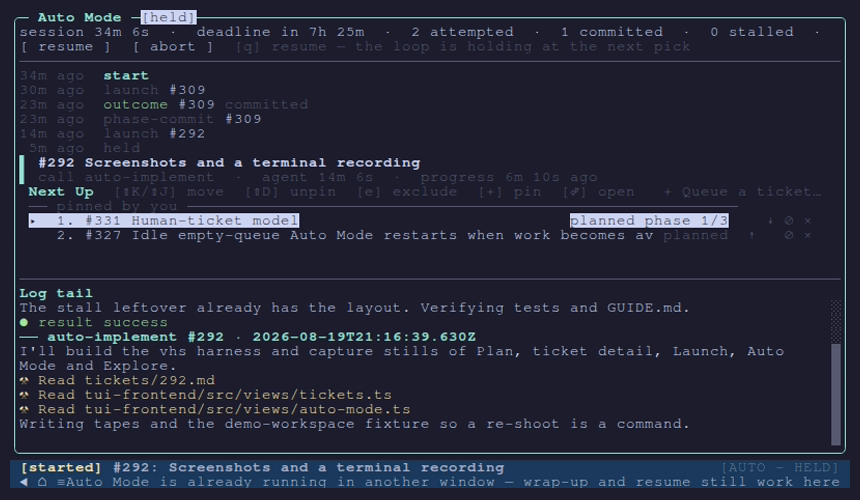
Auto Mode implements one phase or an unphased ticket, commits the completed unit, then selects ready work from its queue. Rank expresses order; readiness also depends on unfinished dependencies. A human hold prevents the next launch.
Ranked queue
Rank 1 · #A101 — Save sound preference Status: started · Current work
Rank 2 · #A102 — Add volume slider Status: planned · Waiting on unfinished dependency #A099 (audio design); stays blocked in this example.
Rank 3 · #A103 — Add keyboard hint Status: planned · Ready next
Completed earlier: #A100 — Default sound on · Status: committed.
Successful sequence
Current unit: #A101 is started. Its rank is separate from its current-work label.
Unit complete: #A101 is done after its acceptance checks.
Committed result: SLAM commits #A101; its status is committed.
Next ready unit: #A103 becomes started. #A102 still waits on #A099.
Hold example: the human places the supervisor on hold before another launch. The illustration pauses at its current step; release the hold to continue, or reset to the initial queue. Hold is a supervisor state, not a ticket status.
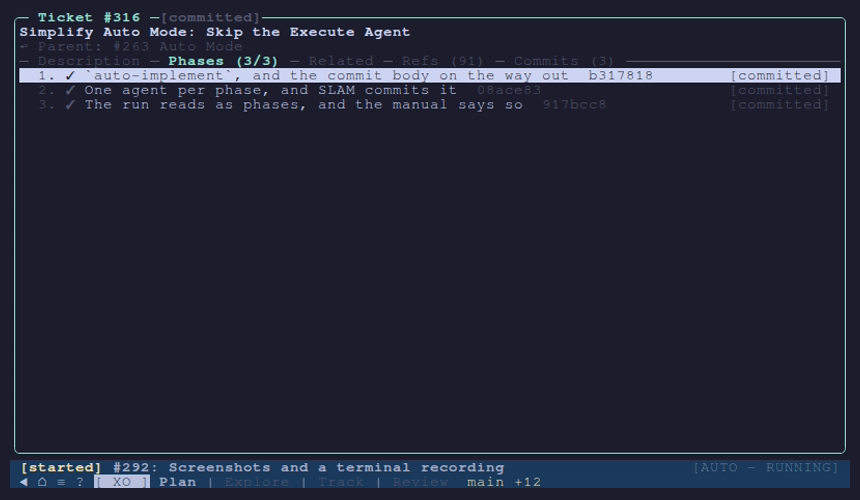
Actual SLAM interface, captured in a seeded demonstration workspace. These stills show demonstration data, not customer activity. No agent is connected.
Open a full-size image to read the terminal text. Scroll within the viewer to inspect it; Close or Escape returns to the gallery.
Install from a checkout with Node.js 20 or newer, git, and a working C toolchain. npm install builds tree-sitter's native bindings. SLAM launches an agent CLI you already have; install and configure your agent client separately.
git clone https://github.com/LonePineGames/SLAM.git slam
cd slam
npm install
npm link
Keep the checkout in place: the linked slam command runs TypeScript from it. There is no published npm package to install.
cd ~/work/my-project
slam init
slam
Run these commands from your own project directory. slam init fills gaps in git setup, tickets, agent guidance and the project's .mcp.json entry, then exits; slam opens the TUI on the Plan tab. The first launch after a fresh clone may pause once to build rtui.
The commands above remain selectable if copying is unavailable. Replace ~/work/my-project with your repository path before running the second block.
One first ticket
Connect your agent. Install and configure the agent CLI you intend to use, including its login. If your client uses MCP, load the project's .mcp.json entry through that client's configuration and restart it after slam init. Check that the SLAM server connects to this repository. SLAM also exposes bookkeeping through its CLI; see MCP setup.
Create a small ticket. Press Space in SLAM and choose Create ticket. Write a title and a few bullets in your own words. For example, “Document the local test command in the README” could ask for the existing command, where to run it and what success looks like. This is an illustration: choose a small change in your project and keep its requirements yours. SLAM stores it in tickets/NNN.md; editing uses your external editor.
Plan and answer. With the ticket selected, open Space → Launch … → Plan w/. Select your configured provider in the launch panel and launch the interactive session. Answer the agent's questions about scope and acceptance. The planner appends its plan below your bullets and ends at planned. If you instead used Plan in background w/, answer its recorded questions and submit the interview to promote the ticket; answering the last question alone does not do that.
Inspect the plan. Open the ticket with Enter and read Description and any Phases. Check the files, intended behavior and validation against your request before implementing. If the scope is wrong, revise it with the planner first. A phase is one unit of implementation; a small ticket may have none.
Implement once. From the selected ticket's palette, choose Launch … → Implement w/ and launch with your provider. It handles one phase, or the whole unphased ticket, and ends at done. For a phased ticket, the phase is done while the ticket may still be started until all phases finish.
Review and accept. Read the agent's outcome and checks, inspect the changed files in Review or your usual diff tool, and verify the requested behavior. Review walks working-tree hunks; it does not isolate a ticket's diff. When satisfied, use Close & Commit in SLAM and review its commit confirmation. If revisions are needed, record your feedback through Needs Work and plan again. Interactive Implement leaves the commit to you. Execute and Auto Mode commit completed units themselves; keep this first exercise interactive.
Setup checks
Install fails: verify Node.js 20 or newer, git and a working C toolchain. npm install compiles tree-sitter's native bindings. See installation prerequisites.
Agent launch or MCP is unavailable: SLAM is not a model; its chosen agent CLI must be installed and configured separately. Check the provider and client configuration. For MCP, restart the client after init and check the entry's paths; a linked slam-mcp can disappear from PATH after a Node version switch. See MCP configuration and linked installs.
First-run build: allow the initial rtui build to finish. Keep the checkout in place and writable: the linked CLI runs from it and the MCP wrapper rebuilds stale backend and MCP output. See checkout behavior.
SLAM Remote is a planned future subscription at a proposed $5/mo, not available yet. (Local SLAM is free.)
SLAM Remote connects a browser to SLAM's terminal grid. Run slam remote to manage paired devices and the repositories this machine allows remote clients to open. A browser can mirror a terminal or start a session in an allowed repository.
Interactive demonstration. All host, device and repository labels are fictional. These controls only change this illustration: no relay, login, pairing, agent execution or network requests.
1 Manage paired devices on the host
Run slam remote on the host to inspect paired devices. Renaming a device changes its label; revoking one removes its access.
Host
Workshop (demonstration)
Device
Pocket browser — paired (demonstration)
Device
Desk browser — watch only (demonstration)
This represents devices already paired from elsewhere. A browser on the host itself does not need pairing.
2 Choose an allowed repository
On the host, r in slam remote opens the repository list. The host explicitly adds allowed workspaces; opening a terminal does not add one automatically.
Host allows
Lantern game (demonstration)
Browser choice
Lantern game — selected (demonstration)
The browser chooser offers repositories the host allows. This illustration uses a fixed fictional choice.
3 Mirror or start a session
A browser can view an existing mirrored terminal or start its own session in an allowed repository.
Mirror
Lantern terminal — demonstration view of the existing terminal's grid
Browser session
Lantern workspace — demonstration of a separate session sized for the browser
A mirrored session belongs to its terminal. A browser-started session can outlive its tab. Neither session is running in this demonstration.
Founder / company
Hybrid Programming
Conor "Lone Pine" Sullivan is a game developer working under the Lone Pine Games brand.
SLAM grew out of using AI in game development, where the human still needs to direct what to build. Hybrid development remains the goal; it is still a work in progress.